Intercardinal Orientation
FORMAT VERSION 1.26.30
This tutorial assumes a good understanding of blocks and scripting. Check out the blocks guide before starting.
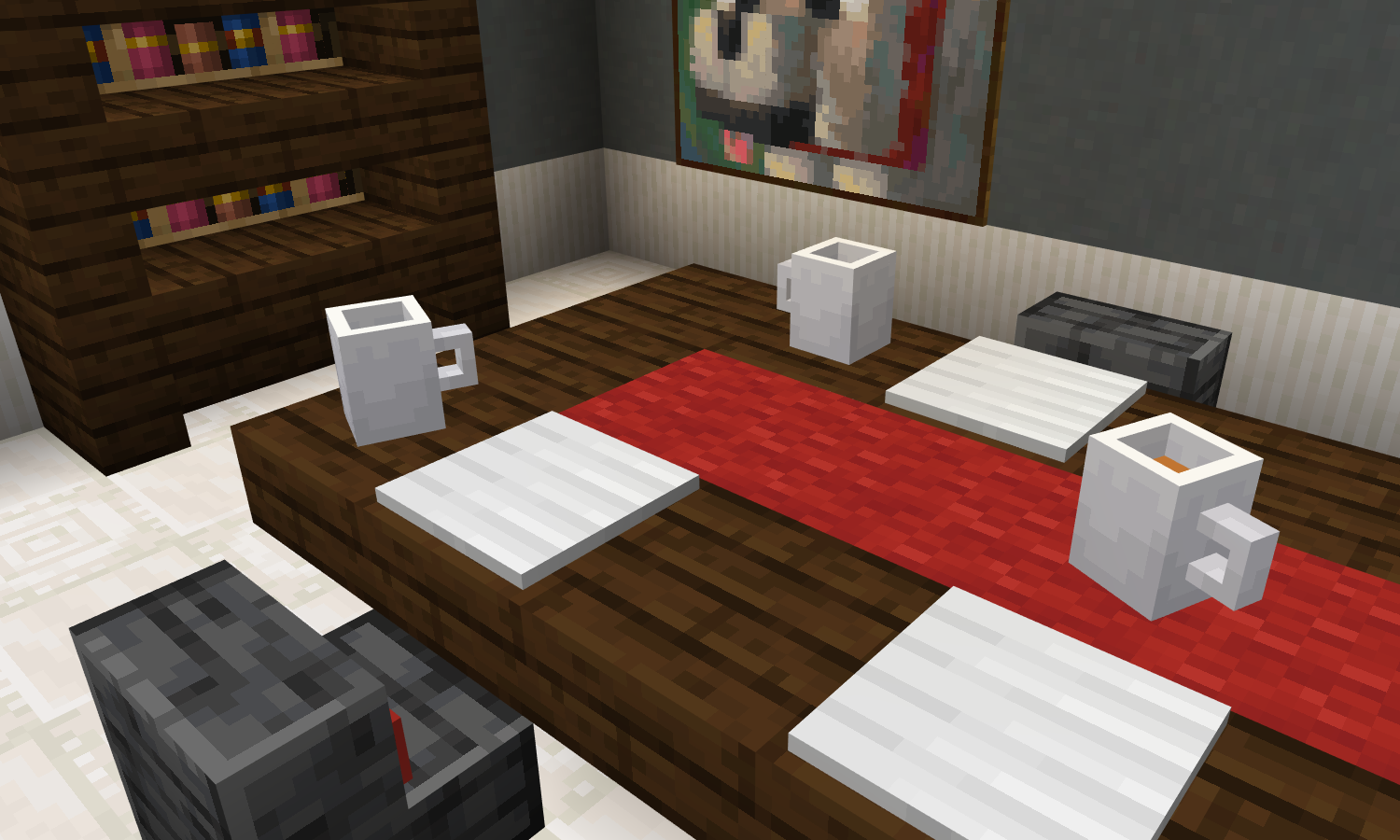
This tutorial guides you through making a block that can face any of 16 intercardinal directions, like mob heads and signs, providing examples of a "mug" block with this type of block orientation.
Initial Block JSON
Before you implement intercardinal direction into your block, you'll need to create a JSON file for your block definition.
Here is the JSON we will be starting with for the "mug" block in this tutorial:
{
    "format_version": "1.26.30",
    "minecraft:block": {
        "description": {
            "identifier": "wiki:mug",
            "menu_category": {
                "category": "items"
            }
        },
        "components": {
            // Collision and selection boxes
            "minecraft:collision_box": {
                "origin": [-3, 0, -3],
                "size": [6, 8, 6]
            },
            "minecraft:selection_box": {
                "origin": [-3, 0, -3],
                "size": [6, 8, 6]
            },
            // Visuals
            "minecraft:destruction_particles": {
                "particle_count": 48
            },
            "minecraft:material_instances": {
                "*": { "texture": "wiki:mug" }
            }
        }
    }
}As you can see, the block is currently missing geometry and permutations that would allow for orientation. Let's get that fixed!
Defining the Direction State
Since Minecraft doesn't expose a built-in intercardinal direction state for use with custom blocks, we'll have to make our own.
The state in this tutorial is based on the ground_sign_direction state used for the orientation of vanilla banners and signs, and will have the following values:
| Value | Direction |
|---|---|
0 | South |
1 | South-southwest |
2 | Southwest |
3 | West-southwest |
4 | West |
5 | West-northwest |
6 | Northwest |
7 | North-northwest |
8 | North |
9 | North-northeast |
10 | Northeast |
11 | East-northeast |
12 | East |
13 | East-southeast |
14 | Southeast |
15 | South-southeast |
As shown above, we'll need to define a block state that supports integer values from 0 to 15. In this tutorial, that state will be called wiki:intercardinal_direction. As always, make sure you change wiki to your own namespace!
"wiki:intercardinal_direction": {
    "values": { "min": 0, "max": 15 }
}Setting the Direction State
Now we need a way to set the wiki:intercardinal_direction state to the correct value before the block is placed by a player.
For this, we can use scripts to calculate the direction value and update the block permutation being placed using the beforeOnPlayerPlace() event hook in a custom component.
Calculating the Direction Value
Here is the function that we will use to convert the player's rotation into an intercardinal direction from 0 to 15.
/** @param {number} yRotation */
function getIntercardinalDirection(yRotation) {
    // Converts the Y rotation into a positive angle below 360
    yRotation %= 360;
    if (yRotation < 0) yRotation += 360;

    // Returns the Y rotation as an intercardinal direction below 16
    return Math.round(yRotation / 22.5) % 16;
}Orientation Custom Component
Now let's create a custom component that uses the getIntercardinalDirection() function to set the block to the correct direction permutation.
import { system } from "@minecraft/server";

// Make sure you change "wiki" to your own namespace!
const stateName = "wiki:intercardinal_direction";
const componentName = "wiki:intercardinal_orientation";

/** @type {import("@minecraft/server").BlockCustomComponent} */
const BlockIntercardinalOrientationComponent = {
    beforeOnPlayerPlace(event, { params }) {
        const { player } = event;
        if (!player) return;

        // Get the "y_rotation_offset" value defined in the block JSON (default to 0) and add it to the player's Y rotation
        const yRotationOffset = params.y_rotation_offset ?? 0;
        const yRotation = player.getRotation().y + yRotationOffset;

        // Get the intercardinal direction value (0-15) from the player's Y rotation
        const direction = getIntercardinalDirection(yRotation);

        // Update the block permutation being placed
        event.permutationToPlace = event.permutationToPlace.withState(stateName, direction);
    },
};

// Register the custom component with the name "wiki:intercardinal_orientation".
system.beforeEvents.startup.subscribe(({ blockComponentRegistry }) => {
    blockComponentRegistry.registerCustomComponent(
        componentName,
        BlockIntercardinalOrientationComponent
    );
});Notice that this custom component has an additional y_rotation_offset parameter? This parameter will allow us to orient the block with an offset to the player, just like the equivalent parameter in the placement direction block trait.
Without this parameter, the block would face the same direction as the player when placed, meaning the back of the block would face towards the player. By setting the parameter to 180, the front of the block (north face of the block model) will face towards the player when placed.
Let's apply the custom component to our block in its components:
"wiki:intercardinal_orientation": {
    "y_rotation_offset": 180 // Face towards the player
}Block Model
Generally, the block transformation component is used to rotate blocks to match their direction, however this component only supports angles that are multiples of 90 degrees. To allow for the 22.5 degree intervals used for intercardinal rotation, your block's model will need a few extra bones.
There are four bones required for intercardinal orientation, each with different Y-axis rotations:
022.54567.5
These rotations are in a clockwise direction when looking at the model from above.
Cardinal Bone
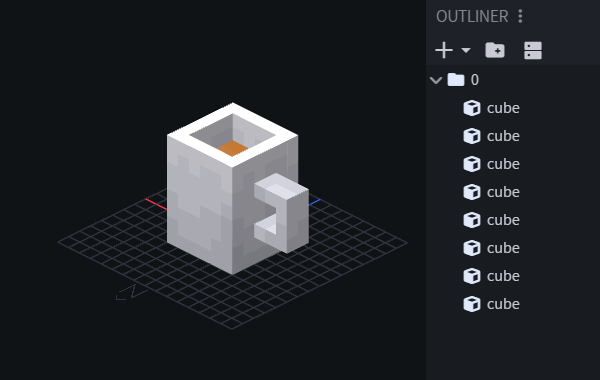
First, you need to create a bone with no rotation, where the front of the model faces north. In this tutorial, each bone will be named after its Y rotation, meaning this bone should have the name 0 as it has been rotated 0 degrees.
This is the bone that will be visible when the block is facing a cardinal direction (when wiki:intercardinal_direction is 0, 4, 8 or 12). At this stage, all cubes of your model must be direct children of this bone and cannot be contained in child bones.
Intercardinal Bones
Now you need to duplicate this bone three times with the remaining rotation values (22.5, 45 and 67.5). These duplicate bones are used when rotating the block to face an intercardinal direction.
TIP
You can duplicate bones in Blockbench by selecting the bone and pressing Ctrl + D.
Keep each bone's pivot point set to [0, 0, 0] so that its rotation is around the middle of the block.
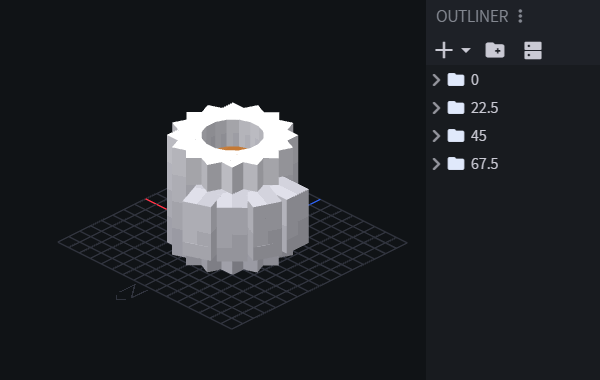
For reference, here's how the final model looks for the "mug" block. Be warned, it isn't a pretty sight just yet!
Applying Block Rotation
Bone Visibility
Not all bones in your model should be visible, so we make use of the bone_visibility parameter in the geometry component to ensure that only the required bones are rendered.
Add the following component to your block:
"minecraft:geometry": {
    "identifier": "geometry.mug",
    "bone_visibility": {
        "0": "math.mod(q.block_state('wiki:intercardinal_direction'), 4) == 0",
        "22.5": "math.mod(q.block_state('wiki:intercardinal_direction'), 4) == 1",
        "45": "math.mod(q.block_state('wiki:intercardinal_direction'), 4) == 2",
        "67.5": "math.mod(q.block_state('wiki:intercardinal_direction'), 4) == 3"
    }
}Permutation Entries
Now, use the permutations array to define the rotation for the base cardinal rotations of the block by inserting the following into your block JSON (in the presented order):
"permutations": [
    {
        "condition": "q.block_state('wiki:intercardinal_direction') >= 0",
        "components": {
            "minecraft:transformation": { "rotation": [0, 180, 0] }
        }
    },
    {
        "condition": "q.block_state('wiki:intercardinal_direction') >= 4",
        "components": {
            "minecraft:transformation": { "rotation": [0, 90, 0] }
        }
    },
    {
        "condition": "q.block_state('wiki:intercardinal_direction') >= 8",
        "components": {
            "minecraft:transformation": { "rotation": [0, 0, 0] }
        }
    },
    {
        "condition": "q.block_state('wiki:intercardinal_direction') >= 12",
        "components": {
            "minecraft:transformation": { "rotation": [0, -90, 0] }
        }
    }
]Final Block JSON & Script
Your block JSON and script files after the above steps should look similar to those below:
Mug Example Block JSON
{
    "format_version": "1.26.30",
    "minecraft:block": {
        "description": {
            "identifier": "wiki:mug",
            "menu_category": {
                "category": "items"
            },
            "states": {
                "wiki:intercardinal_direction": {
                    "values": { "min": 0, "max": 15 }
                }
            }
        },
        "components": {
            // Sets the "wiki:intercardinal_direction" state to the correct value before the block is placed
            "wiki:intercardinal_orientation": {
                "y_rotation_offset": 180 // Face towards the player
            },
            // Collision and selection boxes
            "minecraft:collision_box": {
                "origin": [-3, 0, -3],
                "size": [6, 8, 6]
            },
            "minecraft:selection_box": {
                "origin": [-3, 0, -3],
                "size": [6, 8, 6]
            },
            // Visuals
            "minecraft:destruction_particles": {
                "particle_count": 48
            },
            "minecraft:geometry": {
                "identifier": "geometry.mug",
                "bone_visibility": {
                    "0": "math.mod(q.block_state('wiki:intercardinal_direction'), 4) == 0",
                    "22.5": "math.mod(q.block_state('wiki:intercardinal_direction'), 4) == 1",
                    "45": "math.mod(q.block_state('wiki:intercardinal_direction'), 4) == 2",
                    "67.5": "math.mod(q.block_state('wiki:intercardinal_direction'), 4) == 3"
                }
            },
            "minecraft:material_instances": {
                "*": { "texture": "wiki:mug" }
            }
        },
        "permutations": [
            {
                "condition": "q.block_state('wiki:intercardinal_direction') >= 0",
                "components": {
                    "minecraft:transformation": { "rotation": [0, 180, 0] }
                }
            },
            {
                "condition": "q.block_state('wiki:intercardinal_direction') >= 4",
                "components": {
                    "minecraft:transformation": { "rotation": [0, 90, 0] }
                }
            },
            {
                "condition": "q.block_state('wiki:intercardinal_direction') >= 8",
                "components": {
                    "minecraft:transformation": { "rotation": [0, 0, 0] }
                }
            },
            {
                "condition": "q.block_state('wiki:intercardinal_direction') >= 12",
                "components": {
                    "minecraft:transformation": { "rotation": [0, -90, 0] }
                }
            }
        ]
    }
}Intercardinal Orientation Script
import { system } from "@minecraft/server";

/** @param {number} yRotation */
function getIntercardinalDirection(yRotation) {
    // Converts the Y rotation into a positive angle below 360
    yRotation %= 360;
    if (yRotation < 0) yRotation += 360;

    // Returns the Y rotation as an intercardinal direction below 16
    return Math.round(yRotation / 22.5) % 16;
}

// Make sure you change "wiki" to your own namespace!
const stateName = "wiki:intercardinal_direction";
const componentName = "wiki:intercardinal_orientation";

/** @type {import("@minecraft/server").BlockCustomComponent} */
const BlockIntercardinalOrientationComponent = {
    beforeOnPlayerPlace(event, { params }) {
        const { player } = event;
        if (!player) return;

        // Get the "y_rotation_offset" value defined in the block JSON (default to 0) and add it to the player's Y rotation
        const yRotationOffset = params.y_rotation_offset ?? 0;
        const yRotation = player.getRotation().y + yRotationOffset;

        // Get the intercardinal direction value (0-15) from the player's Y rotation
        const direction = getIntercardinalDirection(yRotation);

        // Update the block permutation being placed
        event.permutationToPlace = event.permutationToPlace.withState(stateName, direction);
    },
};

// Register the custom component with the name "wiki:intercardinal_orientation".
system.beforeEvents.startup.subscribe(({ blockComponentRegistry }) => {
    blockComponentRegistry.registerCustomComponent(
        componentName,
        BlockIntercardinalOrientationComponent
    );
});Remember to import the script into your entry file!
import './intercardinalOrientation.js';Result
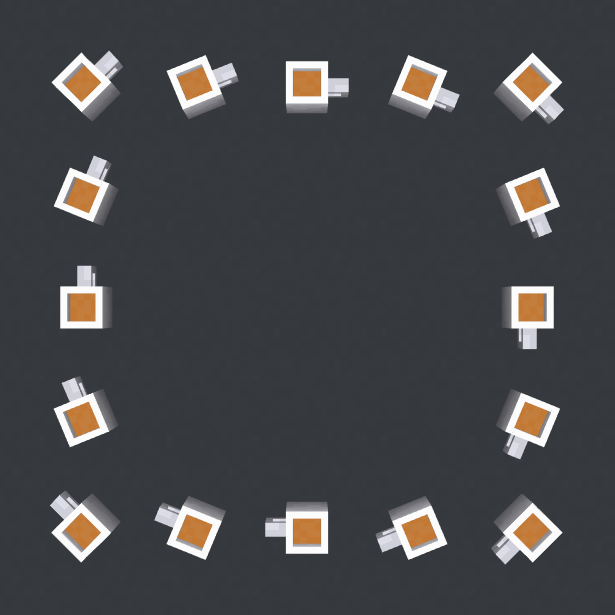
What you have created:
- A block model supporting intercardinal directions
- A block with 16 supported direction state values
- A custom component that can be used to set the direction state
Contributors


Text and image content on this page is licensed under the Creative Commons Attribution 4.0 International License
Code samples on this page are licensed under the MIT License