Intro to Block Visuals
Textures
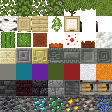
To reduce memory usage, all block textures are combined to form the terrain texture atlas (atlas.terrain), a single large texture that contains every block texture defined in RP/textures/terrain_texture.json from every activated resource pack.
This system also imposes some restrictions on block textures that you will need to abide by:
- Textures should be 16×16 pixels (assuming the textures are not high-resolution)
- If the entire texture of your block will not fit into a 16×16 space, you should apply multiple 16×16 textures to your block instead.
- This is because the destruction cracks displayed when mining a block span across the entire texture size, meaning that creating larger entity-like textures will result in the destruction cracks being stretched.
- Textures that are smaller than 16×16 will be stretched so that they are at least 16×16 pixels in size.
- There is no requirement for texture dimensions to be powers of 2.
- Non-animated textures must not be taller than they are wide.
- If a texture's height is larger than its width, the texture will be treated as multiple frames of an animation, cutting the bottom of the texture off to create a square frame.
- Textures that are wider than they are tall will be added to the atlas correctly as a non-square texture.
- If you would like to create an animated texture, you'll need to make use of flipbook textures.
Adding Atlas Textures
To add a block texture to the terrain texture atlas, you'll need a terrain_texture.json file in the textures folder of your resource pack.
Within this file, you can create a new texture entry inside the texture_data field. The key of this entry will be referred to as the texture "shortname" and should have a namespace. We'll be using the wiki namespace but you should choose something that uniquely identifies your add-on.
{
    "texture_data": {
        "wiki:custom_texture": {
            "textures": "textures/wiki/blocks/custom_texture"
        },
        "wiki:another_texture": {
            "textures": "textures/wiki/blocks/another_texture"
        }
    }
}For most textures, all you need to do is set the textures parameter to the file path of the texture, omitting the file extension. If you would like to create more advanced animated, tinted or variated textures, additional setup is needed which is covered in their own pages.
OTHER ATLAS FIELDS
You may see some resource packs specify other fields such as num_mip_levels at the top level of this file. However, doing so is redundant as all of these fields are already included in the vanilla resource pack. Unless you understand what you're doing and would like to override the vanilla values for these parameters, it's best to leave them out.
Geometry
Block geometry determines the visual shape of a block which textures are applied onto. You can either choose to make a custom model for your block, or use one of the built-in vanilla block models.
Geometry can be applied to a block using the minecraft:geometry component in the block JSON file.
"minecraft:geometry": {
    "identifier": "geometry.honey_jar"
}Conditional Bone Visibility
The groups of cubes in your model (known as bones) can be conditionally shown and hidden based on the block's permutation by making use of the bone_visibility parameter.
For example, you could hide the lid bone on a custom honey jar block based on a boolean block state.
"minecraft:geometry": {
    "identifier": "geometry.honey_jar",
    "bone_visibility": {
        "lid": "q.block_state('wiki:has_lid')"
    }
}Block Culling
Block culling rules allow you to remove parts of a model based on the surrounding blocks. This can help to improve the game's performance as resources aren't wasted on unnecessarily rendering hidden parts of your block. Learn more about block culling here!
Material Instances
Material instances are rendering configurations that can be applied to different parts of a block geometry. They control the render method, shading, texture and tinting that is applied to the parts of the geometry that the material instance is applied to.
You can define the material instances that a block has by using the minecraft:material_instances component.
Here, the texture parameter must reference a texture atlas shortname from RP/textures/terrain_texture.json.
"minecraft:material_instances": {
    "*": {
        "texture": "wiki:custom_log",
        "render_method": "opaque" // Must match other instances
    },
    // Custom instance name
    "end": {
        "texture": "wiki:custom_log_end",
        "render_method": "opaque" // Must match other instances
    },
    "up": "end", // References the "end" instance
    "down": "end" // References the "end" instance
}Material instances are assigned to each face of each cube with the following priority:
- The
material_instancedefined by the UV in the geometry file. - An instance with the same name as the face (
down,up,north, etc.). - The
*instance is applied if neither of the previous material instances exist.
Built-In Material Instances
There are seven built-in material instances that do not need to be explicitly applied in the block geometry in order to function.
This includes the default * instance as well as a material instance for each face. The down, up, north, south, west and east instances are automatically associated with the relevant faces of cubes.
By default, destruction particles will display the texture of the down material instance (or * if not specified).
Custom Material Instances
Custom instances may be referenced by built-in instances (or other custom instances) from within the minecraft:material_instances component to assign the same rendering configuration to multiple material instances. Alternatively, they can be assigned to faces of cubes in the geometry file. You can find a demonstration here!
Render Methods
The render method of a block determines the underlying shader material that is used to render it. All material instances of a block must use the same render method.
Render Method | Transparency | Translucency | Backface Visibility | Far Visibility | Vanilla Examples |
|---|---|---|---|---|---|
alpha_test | ✔️ | ❌ | ✔️ | ❌ | Ladder, Monster Spawner, Vines |
alpha_test_single_sided | ✔️ | ❌ | ❌ | ❌ | Doors, Saplings, Trapdoors |
blend | ✔️ | ✔️ | ❌ | ✔️ | Glass, Beacon, Honey Block |
double_sided | ❌ | ❌ | ✔️ | ❌ | Powder Snow |
opaque (default) | ❌ | ❌ | ❌ | ✔️ | Dirt, Stone, Concrete |
Transparency — Whether fully see-through pixels are supported.
Translucency — Whether partially see-through pixels are supported.
Backface Visibility — Whether faces are visible from behind.
Far Visibility — Whether faces that are further than half the render distance are rendered.
Distance-Based Render Methods
Render Method | Near Appearance | Far Appearance | Vanilla Examples |
|---|---|---|---|
alpha_test_to_opaque | alpha_test | opaque | Leaves |
alpha_test_single_sided_to_opaque | alpha_test_single_sided | opaque | Bamboo, Kelp, Sugar Cane |
blend_to_opaque | blend | opaque |
Near Appearance — The render method used before reaching half the render distance.
Far Appearance — The render method used after reaching half the render distance.
Shading
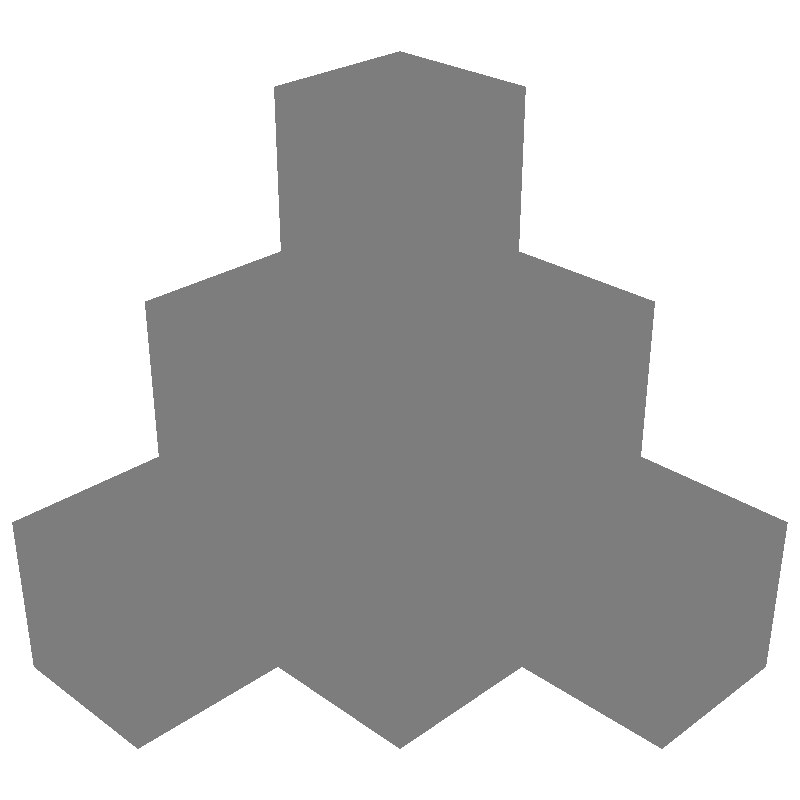
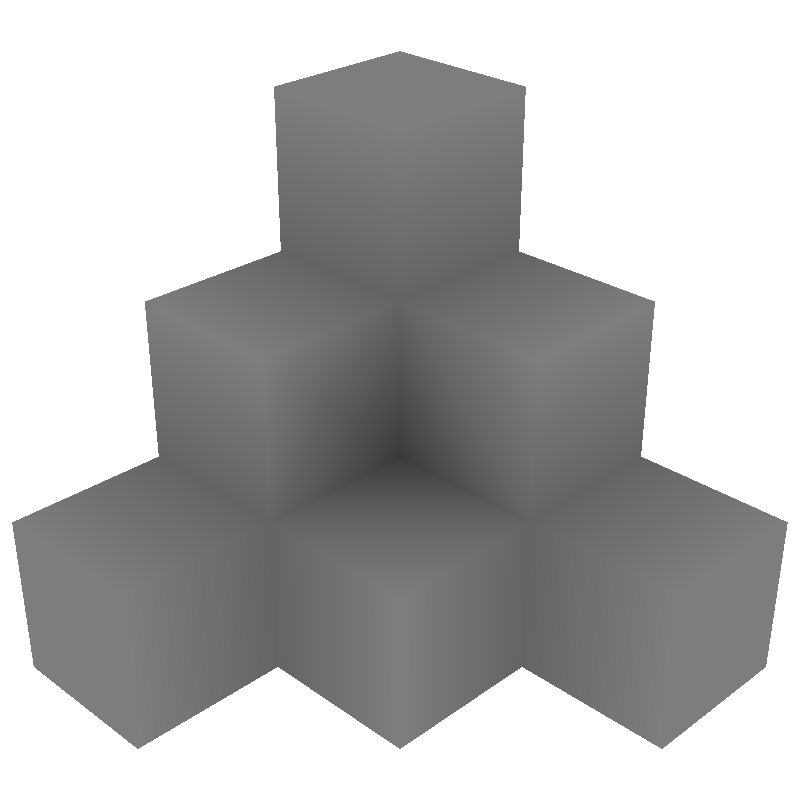
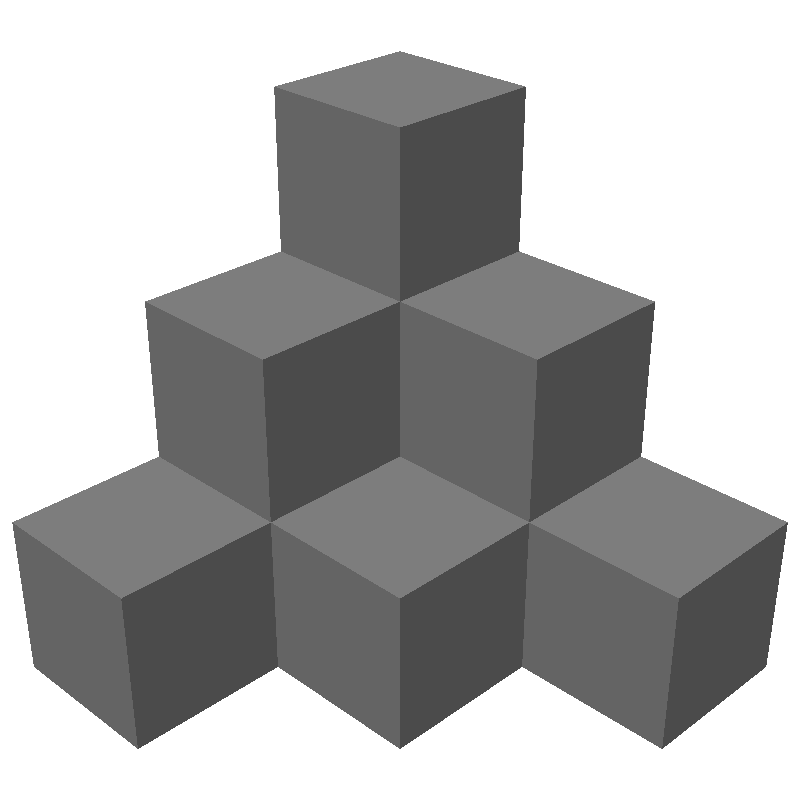
By default, blocks that do not emit light will have both ambient occlusion and face dimming, whereas those that emit light will have no shading applied.
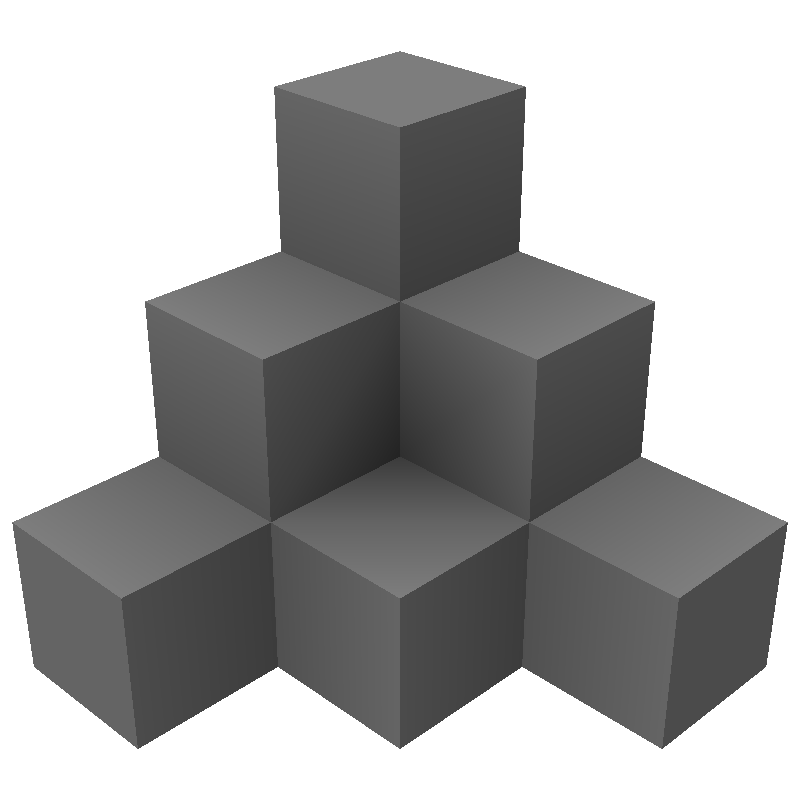
Ambient Occlusion
SMOOTH LIGHTING
This type of shading is only displayed to players who have enabled "Smooth Lighting" in video settings.
Ambient occlusion refers to the shadows cast onto blocks that are placed next to each other. Most full blocks will cast ambient occlusion shadows onto surrounding blocks. Disabling ambient occlusion on a block will disable these shadows, as well as disabling the smoothing of light across the block.
The intensity of ambient occlusion can be configured by defining the ambient_occlusion material instance parameter, with higher intensity resulting in darker shadows.
"minecraft:material_instances": {
    "*": {
        "texture": "wiki:custom_block",
        "ambient_occlusion": 0.0
    }
}A value of 0.0 results in ambient occlusion being completely disabled whereas a value of 1.0 results in ambient occlusion with the regular intensity. A value of 10.0 represents the maximum allowed ambient occlusion intensity.
Face Dimming
Face dimming causes faces of a block to be darkened based on the direction they face. This type of shading can be enabled or disabled by defining the face_dimming material instance parameter.
"minecraft:material_instances": {
    "*": {
        "texture": "wiki:custom_block",
        "face_dimming": false
    }
}Vibrant Visuals
- MER(S) textures can be used to control the physically based rendering properties of blocks, changing how lighting affects blocks.
- Shading from directional lights (such as the sun) and point lights will affect blocks in addition to their ambient occlusion and face dimming configuration.
- Shadows are not cast by blocks using the
blendrender method, such as glass and frogspawn.
Additional Factors
Sometimes, functionality that is not purely related to visuals can affect the way a block looks.
- Block geometry may be altered by the random offset and transformation components.
- The held item of a block will look emissive if the default block permutation emits light.
Legacy Block Visuals (blocks.json)
If you've been looking at existing resource packs, such as those built into vanilla, you might have seen block texture configuration inside the RP/blocks.json file. This system is based on hardcoded block shapes rather than data-driven geometry and has extremely limited support for custom blocks.
Unless you're modifying vanilla blocks, the blocks.json file should not exist in your resource pack.
Contributors

Text and image content on this page is licensed under the Creative Commons Attribution 4.0 International License
Code samples on this page are licensed under the MIT License